¶ Topic
Understanding snapshots: When to create a snapshot, how to revert to a snapshot, and how the process works.
¶ Snapshots
¶ What is a snapshot
A snapshot is a 100% copy of a system as at the time when you create the snapshot. It lives in your PM8 database in the same way as any other system except that it has the status Snapshot. Noting that systems normally have the status Active.
The purpose of a snapshot is to give you a point to revert to if you mess up the system.
¶ When to create a snapshot
Consider making a snapshot when:
- When you are about to make complex changes to a system that would be difficult to reverse, such as many changes to keying.
- When you are about to make coding changes to a system that has complex coding.
- When you do not have the experience or confidence that you will not make a mistake when altering a system.
You can make many snapshots for a system and they get named sequentially ".SNAP1", ".SNAP2", etc.
Be mindful that snapshots take storage in your database so don't go crazy creating snapshots if there is no need to do so.
¶ How to create a snapshot
Whis your system open, and before you do the risky changes, choose the System menu then Create a snapshot of the system.
A name is offered for the snapshot based on the system number and appending ".SNAP" and a sequential number. For example, if a system is called "10000KEYS", the name offered for the first snapshot will be "10000KEYS.SNAP1".
There is seldom a need to alter the name offered, so click OK and wait until the snapshot is finished.
A snapshot is almost entirely the same as exporting the system, then importing the exported system file with a new system number and then changing the status of the imported system to Snapshot. But that is a whole lot more onerous than using the snapshot functionality.
¶ In pictures: Creating a snapshot
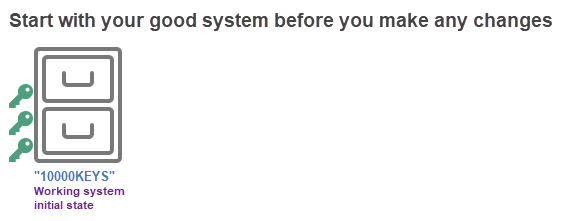
- We have a system "10000KEYS" and have not made the risky changes.
-
Choose the
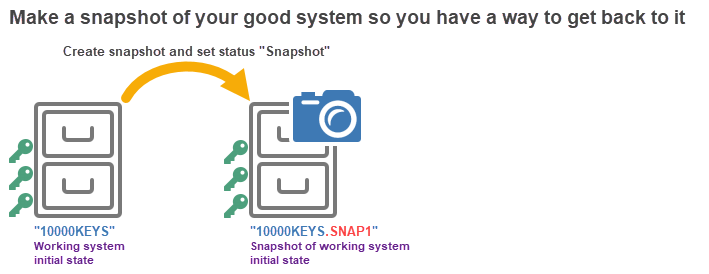
Systemmenu thenCreate a snapshot of the system. Leave the snapshot system number offered as it is ("10000KEYS.SNAP1" for this example) and clickOK. -
Here is what happens, resulting in your original system and the snapshot.
¶ After you have created the snapshot
With the snapshot created, you can now make any changes to the system just as you normally would. The snapshot sits in the background in case you need it.
¶ How to revert to a snapshot
If it happens that you have been unsuccessful in your attempts to alter a system and want to revert to a snapshot, choose the System menu then Revert to a snapshot of this system.
Here is what it looks like:
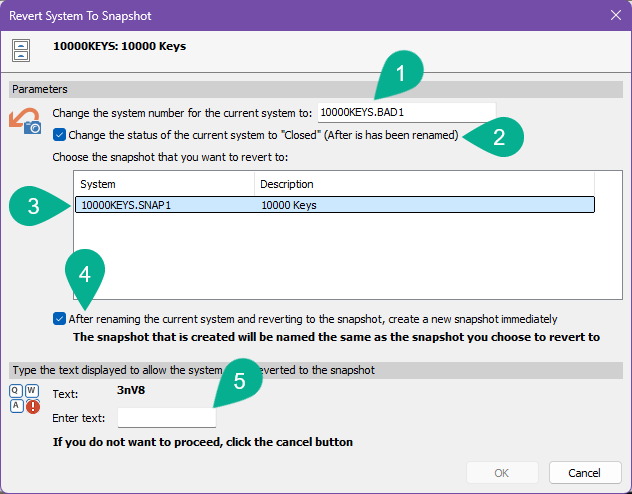
- The current system will be renamed and its status changed to Closed.
Item 1is the name that will be used. A name is offered for renaming the "unsuccessful" system based on the system number and appending ".BAD" and a sequential number. For example, if a system is called "10000KEYS", the name offered for the rename will be "10000KEYS.BAD1".
There is no good reason to change the name offered - leave it unchanged.
Item 2says that the current system will have its status changed from Active to Closed after it is renamed.
This is a good thing to do because the "bad" system can then never be opened and altered by mistake.
There is no good reason to change the option for the system status - leave it unchanged.
-
For
Item 3you must select which snapshot to revert to. If there is more than one snapshot, then most likely it is the most recent one that you will want. -
After the snapshot is restored, there is no longer a snapshot in existence (Because it has now become the live system). The
Item 4option says to make a new snapshot immediately. This is almost always the best thing to do. Best to leave this option turned on. -
The last thing to do before clicking OK is to check your choices, enter the confirmation text (
Item 5) and clickOK.
There are a few choices here, but the best advice is change nothing except selecting which snapshot to use.
¶ In pictures: Reverting to a snapshot
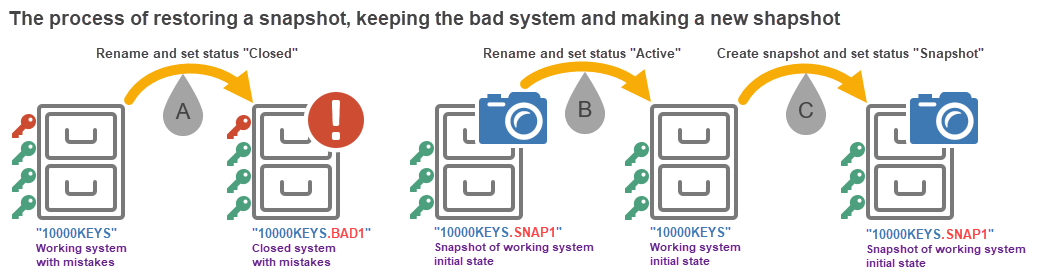
Here is what happens when you revert to a snapshot:
-
Step Ais renaming and changing the status of the current "unsuccessful" system to Closed. This relates to items 1 and 2 from the screenshot above. -
Step Bis renaming the selected snapshot to be the live system and changing its status to Active. This relates to item 3 from the screenshot above. -
Step Cis to make a new snapshot. This relates to item 4 from the screenshot above.
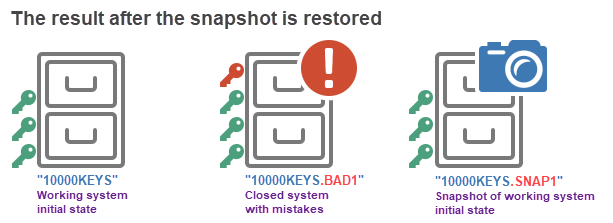
When the process is complete, here is what it looks like in your database:
¶ Comments
When you open a system in PM8, the status that is searched for is Active, so you would not normally see the Snapshot and Closed systems.
You can change the search to include other statuses, but generally there is not a good reason to open these systems.